Exploring iPhone tips and tricks is always exciting, and we’re constantly discovering more. The latest involves using your iPhone’s volume buttons for more than just adjusting sound. If you’ve only used them for volume control, you’re missing out on useful shortcuts. Here are some ways to make the most of your iPhone’s volume buttons beyond music playback.
This helpful trick can lend you a hand with your iPhone photography. It’s applicable in portrait, traditional photo, and panorama modes for the rear camera, and in portrait and traditional photo modes for the front camera. Simply open the Camera app and use either volume button to capture a photo or initiate a panorama. To conclude the panorama, tap the button again, or hold it down throughout the process to capture continuously.
Take videos
You can employ the same method to record videos. Simply switch to video mode in the Camera app and use either volume button to start recording. Press the button again to stop, or hold it down continuously to record until you release the button—it will cease recording automatically.
Using a photo burst can streamline the editing process for iPhone photos by providing a wider array of options to select from. For iPhone models XS, XR, or newer, you can capture burst shots by pressing and holding the volume up button. To enable this feature, navigate to Settings > Camera, and toggle on “Use Volume Up for Burst.” If you’re already utilizing burst mode, understanding how to remove duplicate photos on your iPhone is crucial.
The built-in document scanner on your iPhone functions seamlessly within apps like Files, Mail, Notes, and Reminders. Utilizing the Camera app for this feature, you can simply press either volume button to capture a scan of the document you require, instead of tapping the shutter button on the screen.
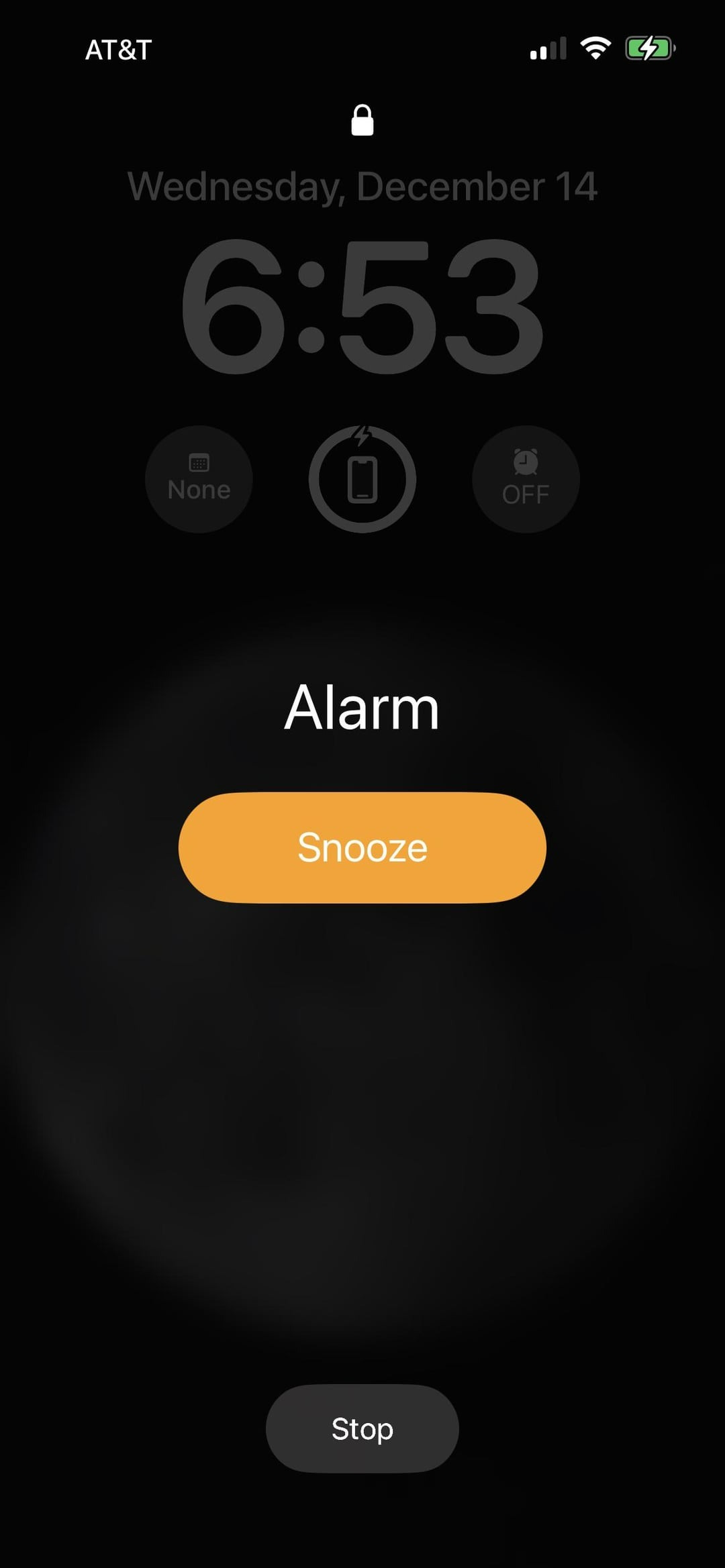
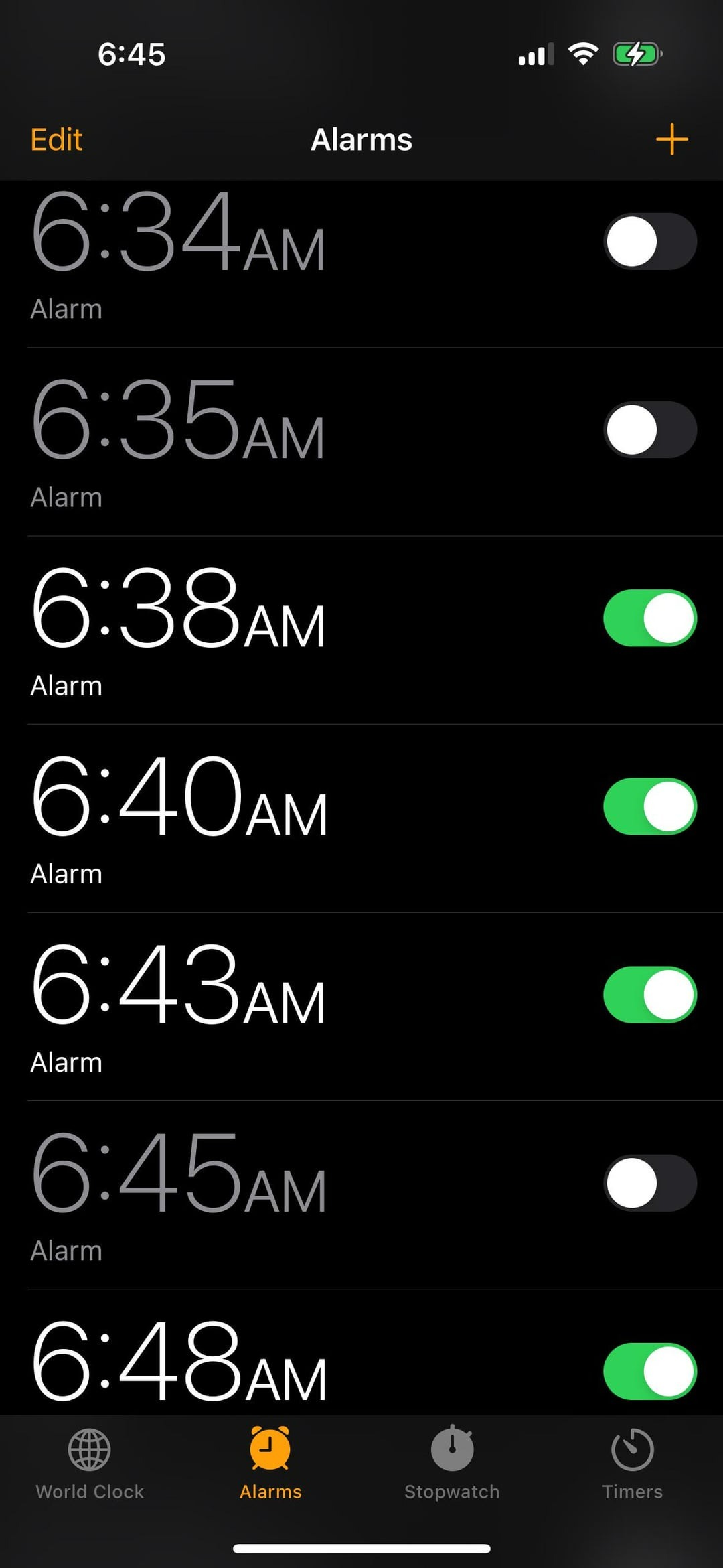
For iPhone users who rely on their device as an alarm clock, here’s a handy trick to remember. If you find yourself half-asleep and struggle to locate the “Snooze” button on your phone screen in the morning, simply press either volume button to snooze your alarm. Just ensure that the “Snooze” function is enabled for the specific alarm.
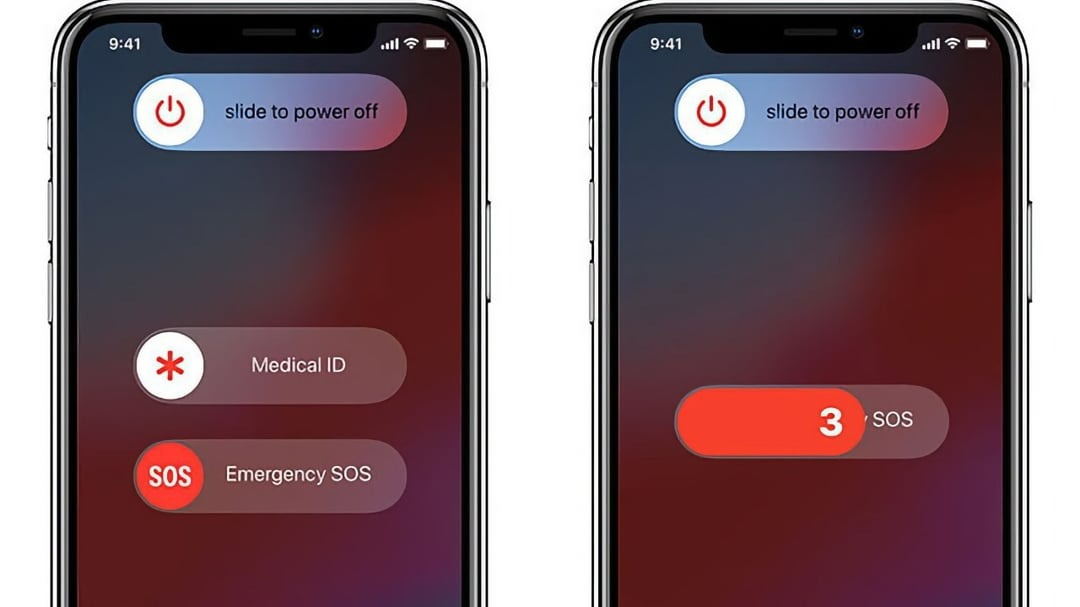
In a genuine emergency where time is of the essence and unlocking your iPhone is not feasible, Apple has simplified the process. To swiftly contact emergency services, press and hold the side lock button along with either volume button (or all three buttons) until the “Emergency Call” slider appears. Swipe the SOS icon to the right to initiate the call.
If your phone becomes unresponsive and there’s no option to restart it, you may need to perform a factory reset as a last resort. To do this, press the volume up button, followed by the volume down button, and then hold down the side lock button until you see the Apple logo against a black background. Once your lock screen reappears, it indicates that a hard reset has been completed. Unlike a regular restart, which occurs at the software level, a hard reset operates at the hardware level, often resolving issues when your phone is frozen or experiencing glitches. Remember that a factory reset erases all data on your phone, so ensure you have recently backed up your data to the cloud.
You can temporarily disable Face ID from unlocking your iPhone by following these steps: Press and hold the side lock button along with either volume button for two seconds. This action will prompt the screen you see when calling emergency services. Once the sliders appear, press the side button to instantly lock your iPhone. Alternatively, it will lock automatically if left untouched for about a minute.
To promptly silence incoming calls, whether they’re regular calls or FaceTime calls, as well as halt vibrations if your phone is on vibrate mode, simply press either volume button. This action will efficiently mute the call without requiring you to interact with the screen.
Your iPhone’s Volume Buttons Are Packed with Hidden Features
Eduardo Gaskell
03.07.24
Exploring iPhone tips and tricks is always exciting, and we’re constantly discovering more. The latest involves using your iPhone’s volume buttons for more than just adjusting sound. If you’ve only used them for volume control, you’re missing out on useful shortcuts. Here are some ways to make the most of your iPhone’s volume buttons beyond music playback.
This helpful trick can lend you a hand with your iPhone photography. It’s applicable in portrait, traditional photo, and panorama modes for the rear camera, and in portrait and traditional photo modes for the front camera. Simply open the Camera app and use either volume button to capture a photo or initiate a panorama. To conclude the panorama, tap the button again, or hold it down throughout the process to capture continuously.